

GLSU not working usually means the failure sits in one of five places: SAP connectivity, SSO or SNC authentication, master-data validation, Excel formatting, or SAP-side configuration after a system change.
GLSU gives finance teams a familiar Excel-based way to prepare, validate and post financial data into SAP, so when it stops working during a month-end or year-end close, the disruption can extend beyond the individual journal. Posting may be delayed, preparers may need to repeat checks, and SAP or Basis teams may need to determine whether the issue sits with the spreadsheet, the desktop configuration, SAP itself or the GLSU installation.
A GLSU error does not necessarily mean that GLSU is unreliable.
Nor does it automatically mean that the journal data is incorrect.
The first step is to identify where in the process the failure is occurring.
Common GLSU issues tend to arise around a small number of areas: SAP connectivity and authentication, validation and master data, Excel formatting, SAP-side configuration, and changes to the underlying SAP environment.
Understanding these different scenarios can help finance and SAP teams investigate the issue more systematically before escalating it to support.
Quick answer: GLSU stops working for one of five reasons: a connection or launch failure, an SSO or SNC authentication issue, a master-data validation rejection, an Excel date or formatting error, or an SAP-side configuration gap after an upgrade. Identify which stage failed before changing the journal data.
Key Takeaways
- GLSU issues can originate in different parts of the process, including the Excel Add-In, SAP connectivity, SSO and SNC, validation data, file formatting and SAP-side configuration.
- GLSU validation can operate using downloaded SAP master data or real-time validation, depending on how the organisation has configured the solution.
- Authentication problems should be separated from journal-data problems. GLSU supports SAP SNC for single sign-on, so desktop or SNC configuration can affect connectivity.
- Excel date values can create problems when dates are stored as text or interpreted differently across regional settings.
- GLSU includes SAP-side components, transports and authorisation requirements. Compatibility and configuration should therefore be reviewed when problems begin after an SAP change or upgrade.
- Repeated GLSU issues do not automatically mean that an organisation needs to replace its upload tool. They may, however, provide a useful reason to assess the wider journal process around validation, approval, posting and audit evidence.
What Is GLSU and Where Does It Sit in the SAP Journal Process?
GLSU, now offered as Process Runner GLSU. is an Excel-based solution for preparing, validating, and posting financial data into SAP.
The solution includes both PC and SAP components.
Finance users work from Excel, while SAP-side components support functions such as validation, posting, and configuration. Transaction ZGLSU supports GLSU administration and configuration in SAP.
This distinction matters when GLSU is not working, since the visible symptom does not always identify the underlying cause.
A problem experienced from Excel may originate from the local Add-In, the connection to SAP, SAP authorisations, validation configuration, or the SAP-side GLSU components.
Current GLSU documentation is maintained by InsightSoftware under Process Runner GLSU, although organisations may still encounter legacy ZOption terminology in installations, documentation and configuration.
Issues relating to the GLSU Excel Add-In or its installation should be directed to the relevant GLSU vendor support channel.
Why Is GLSU Not Working? 5 Common Causes to Check
GLSU depends on several components working together across Excel, the user’s desktop environment, and SAP.
A problem can therefore appear in GLSU even when the underlying cause sits elsewhere in the process.
The main failure points usually fall into a small number of areas :
- The connection handoff between GLSU and SAP
- SSO and SNC authentication
- SAP master data and validation
- Excel file and formatting issues
- SAP-side configuration following an upgrade or system change
A journal that fails validation requires a different response from one that cannot connect to SAP. Similarly, an authentication problem should not be investigated in the same way as a date-format issue in Excel.
Identifying the stage at which the process failed is therefore the most useful starting point for GLSU SAP troubleshooting.
The following sections look at each failure point separately, what it may indicate, and what finance, SAP, or IT teams should check first.
1. Connection and Launch Issues
A blank screen error should first be separated from a problem with the journal itself.
This is particularly important where GLSU is connected to an additional workflow process.
For example, in a GLSU Process Runner workflow scenario there may be a need for a browser session to start in an external system outside of SAP. If the SAP server returns an error during that handoff, or a security or authentication issue prevents the browser from starting correctly, the user may see a security message in Excel instead.
The journal itself may not be the cause.
In this situation, useful checks include :
- Whether SAP is available and responding normally
- Whether the problem affects one user or several users
- Whether the browser opens correctly for other workflow requests
- Whether anything has recently changed in authentication or desktop configuration
- Whether the problem occurs only when submitting to workflow or when using GLSU more generally
This last point is particularly important.
If the GLSU Add-In itself does not load in Excel, the issue is different from a browser failing to open during a workflow handoff. Add-In installation and local GLSU issues should be investigated separately through the GLSU support route.
Troubleshooting should therefore begin with the stage that failed, not simply the message that appeared on screen.
2. SSO and SNC Configuration Errors
Where SNC is correctly installed and configured, GLSU can use the organisation’s existing SAP authentication without requiring a separate GLSU authentication mechanism.
This also means that a change to the surrounding authentication environment can affect GLSU connectivity.
For example, an issue may appear after:
- A new desktop or laptop is deployed
- SAP GUI is reconfigured
- SNC settings change
- Certificate configuration changes
- User or security policies are updated
From a finance user’s perspective, the result may look like a GLSU problem.
The underlying issue may instead sit with the SAP authentication path.
If a GLSU SSO error or browser security message begins immediately after one of these changes, the internal SAP Basis or IT team should confirm that SNC is operating correctly before the journal itself is reworked or resubmitted.
Authentication determines whether GLSU can communicate with SAP. It does not determine whether the accounting entry is valid.
3. GLSU Validation Errors for G/L Accounts, Company Codes and Master Data
GLSU validation errors can have different causes, so it is important to identify what is being validated and how.
GLSU can be configured to validate selected SAP master data, such as vendor, customer and, material master records.
Depending on the configuration, that validation may use master data downloaded from SAP to the user’s PC or real-time validation against SAP.
A rejected G/L account company code, cost centre or other master-data value may indicate that :
- The value is not valid in the relevant SAP environment
- The master data is inactive or unavailable for the intended posting
- The GLSU validation configuration does not include the expected value
- Downloaded validation data needs to be refreshed
- A difference exists between the system or client being used and the validation data held locally
The first question is therefore not simply whether the spreadsheet looks correct.
It is whether the value is valid in the SAP environment against which the journal will be posted.
Where an organisation uses downloaded GLSU validation data, finance teams should also consider whether that data is current.
Where real-time validation is enabled, the journal can be checked directly against current SAP information.
A spreadsheet can be structurally correct while still containing accounting data that SAP will not accept.
4. Excel Date and Format Errors
Excel is a widely used tool for journal preparation because finance teams can use a familiar environment – they work with already-known formulas, calculations and templates.
So, Excel in itself is not the problem.
It is ensuring that the data Excel passes into the SAP process is interpreted consistently.
Dates are a common example.
GLSU can interpret dates entered as text according to SAP or user settings. This can become problematic where the same workbook moves between users with different regional formats.
For example, a value that appears clear to one user may be interpreted differently when the workbook is opened or processed in another locale.
A safer approach, covered in more detail in Promenta’s guide to common SAP journal entry upload template mistakes, is to store journal dates as actual Excel date cells instead of text values.
When a GLSU date format error occurs, finance teams should therefore check :
- Whether the cell is stored as a date or as text
- Whether the workbook has moved between users with different regional settings
- Whether the expected SAP date interpretation matches the value in Excel
- Whether the issue affects all users or only one desktop
Standardising the template can reduce this source of variability.
It also avoids spending time investigating SAP master data when the underlying problem is simply how Excel has stored the value.
What Changes After an SAP Upgrade
GLSU is not only an Excel file running independently of SAP.
The solution includes SAP-side components, transport objects and authorisation requirements.
That becomes particularly relevant when a problem appears immediately after an SAP support change, system migration or S/4HANA upgrade.
Current GLSU requirements include specific SAP components and supported versions. GLSU also relies on relevant SAP authorisations, including access to ZGLSU and the functions required for the posting method being used.
A post-change problem should therefore prompt SAP and Basis teams to review :
- Whether the installed GLSU version is compatible with the updated SAP environment
- Whether the required GLSU SAP components and transports are present
- Whether relevant authorisations remain correctly assigned
- Whether RFC access or other required connectivity has changed
- Whether system-specific GLSU configuration remains valid
- Whether the issue began at the same time as the SAP change
Instead of simply assuming the upgrade has broken GLSU, teams should focus on discovering what exactly changed.
This provides a much clearer starting point for the Basis team and, where required, GLSU support.
GLSU Troubleshooting Map: Symptom, Cause and Owner by Area
| Area | Typical symptom | What to check first | Likely owner |
| Excel Add-In or installation | GLSU tab missing, Add-In will not load | GLSU tab missing, Add-In will not load | GLSU vendor support / desktop IT |
| Browser or workflow handoff | Browser does not start, security popup during workflow submission | SAP response, browser handoff and workflow configuration | Basis / IT / relevant workflow support |
| SSO and SNC | Authentication error, certificate or login issue | Desktop SNC and SAP authentication configuration | SAP Basis / IT |
| Master-data validation | G/L account, company code or cost object rejected | SAP master data and whether GLSU validation data is current | SAP FICO / master-data team |
| Excel date or format | Date rejected or interpreted incorrectly | Excel cell type and regional settings | Journal preparer / template owner |
| Post-upgrade or SAP change | GLSU stops working after system change | Version compatibility, transports, SAP components and authorisations | SAP Basis, followed by GLSU support |
What Finance Teams Should Check Before Raising a GLSU Support Ticket
A small amount of structured triage can make a support request much easier to investigate.
Before raising a ticket, capture :
- The exact error message : Record the full error text rather than describing the issue only as GLSU not working.
- The step at which the failure occurred : Was the journal being validated, posted, parked, authenticated or submitted into workflow?
- Whether the issue affects one journal or several : If unrelated journals fail at the same step, the issue is less likely to sit with one specific journal.
- Whether the issue affects one user or several : A problem isolated to one machine may point towards the local Excel, SAP GUI or SNC configuration.
- What changed immediately before the problem appeared : Relevant changes may include a new machine, SAP upgrade, GLSU upgrade, certificate change, authorisation update or transport.
- Which SAP system and client are involved : GLSU configuration and validation information can differ between SAP environments.
This does not replace vendor or internal SAP support.
It gives those teams a clearer starting point.
When Repeated GLSU Issues Point to a Wider Journal-Control Question
GLSU and similar Excel-to-SAP tools solve an important operational problem.
They allow finance teams to prepare financial data in Excel and transfer it into SAP, avoiding the risk of manual journal entries that comes with re-keying every line by hand.
For many organisations, this is a valuable benefit.
However, when preparing an Excel spreadsheet, finance teams must consider the same journal entry compliance questions around validation, workflow and audit evidence :
- When the journal is validated
- Whether the validation reflects current SAP rules
- How supporting documentation is retained
- How approval is routed
- Whether segregation of duties is enforced
- Whether users can bypass the approval process
- Where the journal and approval evidence are stored
- How the complete history is demonstrated during an audit
Answering these questions helps teams effectively compare GLSU with a complete journal-management process.
Process Runner GLSU provides finance-specific Excel-to-SAP functionality and pre-validation. Organisations that require approval workflow can also use additional workflow functionality, including InsightSoftware’s Easy Workflow.
That may be entirely appropriate for some SAP environments.
Other organisations may prefer to keep validation, workflow, authorisations, posting and audit evidence within the SAP landscape itself.
The most appropriate approach depends on the organisation’s existing architecture, finance-control requirements and operating model.
Where an SAP-Native Journal Workflow Differs
For organisations evaluating the best automated journal entry software for SAP and reviewing the wider process (not just an individual GLSU error), the workflow’s location becomes an important evaluation point.
A journal-management process may need to cover:
Excel preparation → SAP validation → posting simulation → submission → approval → segregation of duties → posting → audit trail
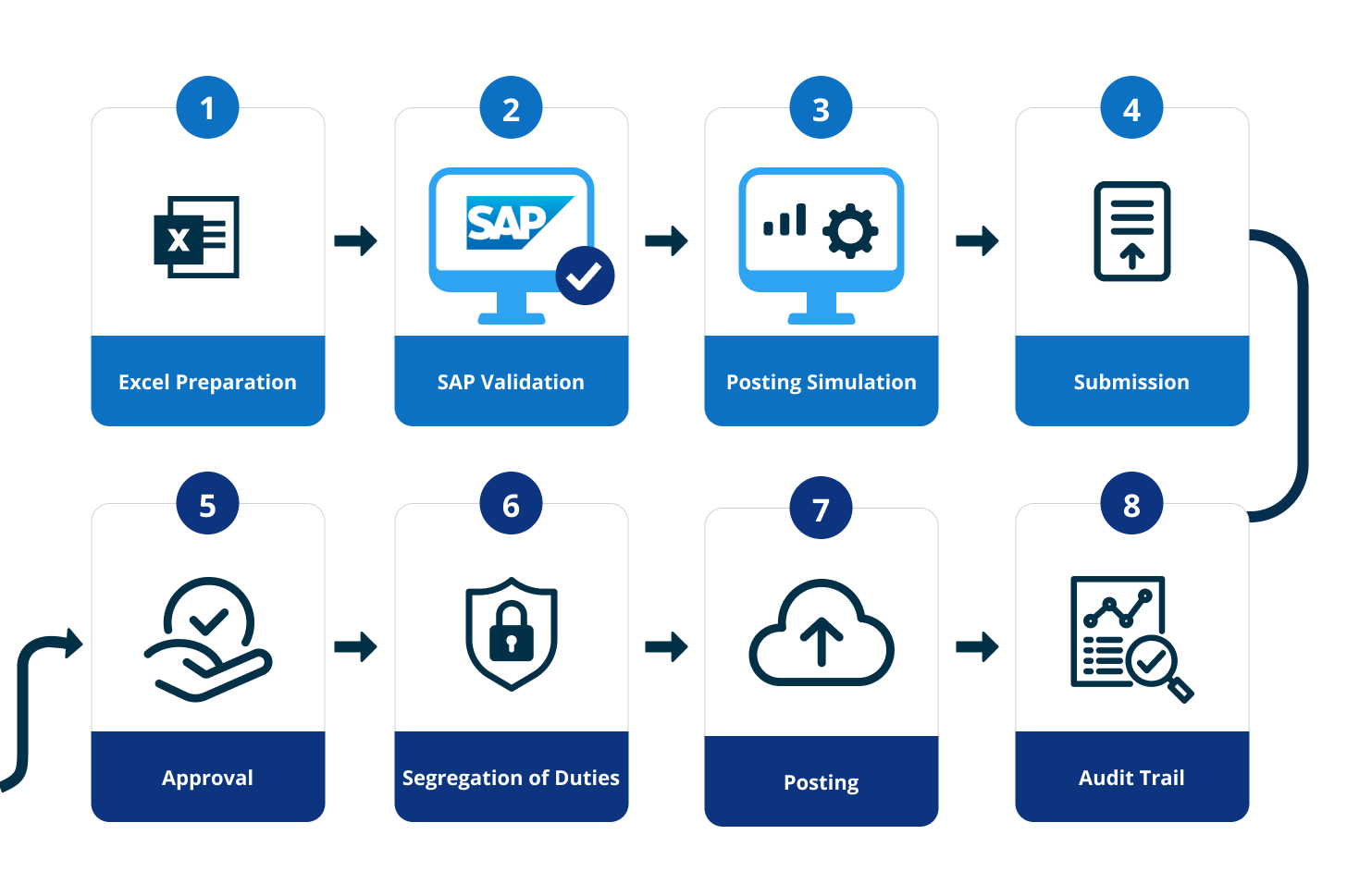
The individual capabilities matter, and so does where they operate.
Promenta’s Journal Management solution is designed to manage this process natively within SAP S/4HANA and ECC. Promenta has partnered with SAP for over 20 years and has been an SAP-certified partner since 2004.
Finance teams can continue using Excel as the preparation environment through the Promenta Excel Add-In (even with the GLSU excel format), while the wider control process remains connected to SAP. This includes :
| Capability | Typical Excel-to-SAP upload tools (e.g. GLSU) | Promenta SAP-native journal workflow |
| Where it runs | Outside SAP, often via an external server or middleware in the journal path | Natively inside SAP S/4HANA and ECC, with no external server or middleware in the journal path |
| Validation | Depends on configuration; may use downloaded master data or real-time SAP validation | Validation against current SAP data and finance rules, with full posting simulation (GGB0) before submission |
| Approval and segregation of duties | Not a built-in feature of the upload step itself | Configurable approval routing, with requester and approver separation and segregation-of-duties controls |
| Audit evidence | Depends on the surrounding process and where supporting documentation is stored | Supporting documentation and a continuous, reportable audit trail retained within SAP |
| Governance footprint | May add an additional system and environment to govern | One system to govern for preparation, validation, approval, posting and audit evidence |
The architectural difference is that the core journal workflow operates inside SAP without requiring an external server or middleware in the journal path.
For organisations with strict finance-control, data-security or audit requirements, this can reduce the number of environments across which journal data, approval evidence and authorisations need to be governed.
While it does not mean that every GLSU user needs to replace GLSU, it means finance and SAP teams should separate three questions that may have different answers:
Is the current upload tool meeting the organisation’s preparation and posting needs?
Is the wider journal process providing the required validation, approval, segregation of duties and audit control?
Are the journal management functional requirements being met in the most commercially competitive way with the most efficient total cost of ownership?
Finance and SAP teams weighing that first question against a native alternative can review how Promenta’s free SAP journal upload tool compares as a Process Runner GLSU alternative.
Built natively on SAP. No external servers, no duplicate financial data.
Conclusion
Most cases of GLSU not working can be investigated more effectively once finance and SAP teams identify which part of the process has failed.
A validation message should be treated differently from an SNC authentication problem.
A browser security issue should be separated from an Excel Add-In problem.
A failure that begins immediately after an SAP upgrade should prompt a review of SAP-side components, compatibility and authorisations before the journal data itself is changed.
The same principle applies to the wider journal process.
The objective is to ensure journal preparation, validation, approval, posting and audit evidence work together as a controlled process.
For finance leaders reviewing the current approach, useful considerations include:
- Are journal errors identified during preparation or only close to posting?
- Is validation based on current SAP information?
- Is approval enforced as part of the posting path?
- Can users bypass the required approval process?
- Does supporting documentation remain connected to the journal?
- Can the complete journal history be demonstrated from one place?
- Where does the workflow operate?
- How many systems need to be governed to manage one journal from preparation to posting?
Recurring GLSU problems may simply require a technical fix.
Thus, beyond exposing wider gaps in validation, workflow or auditability, these issues may also provide a useful opportunity to review how the complete journal life cycle is controlled.
Frequently Asked Questions
Why does GLSU show a blank screen or fail to launch?
The cause depends on the stage at which the problem occurs.
If the GLSU Excel Add-In itself does not load, the local installation should be checked through desktop IT or GLSU vendor support.
Where the issue occurs during a browser-based workflow handoff, a browser or SAP security error can prevent the session from starting. In that situation, SAP connectivity, authentication and SSO configuration should be checked before the journal data is changed.
What causes GLSU validation errors for G/L accounts and company codes?
GLSU can validate SAP master-data values such as G/L accounts and other finance fields.
Depending on the organisation’s configuration, validation may use SAP data downloaded to the user’s PC or real-time SAP validation.
Therefore, a rejection may mean the value is not valid in SAP, and that the relevant master data has changed, or locally held validation data needs to be refreshed.
Finance teams should confirm the value in the relevant SAP system and client before repeatedly changing the spreadsheet.
What is the difference between a native SAP journal workflow and a non-native workflow?
GLSU supports SAP single sign-on through SNC.
If SNC is correctly installed and configured on the desktop, no separate GLSU SSO configuration should normally be required. When an authentication problem begins after a new machine, certificate change, or SAP security update, the internal SAP Basis or IT team should confirm the SNC configuration first.
Authentication problems should be resolved separately from journal validation issues.
What is the difference between SAP journal entry upload and journal entry verification?
GLSU includes SAP-side components, transports and authorisation requirements, so an SAP environment change can affect the conditions under which GLSU operates.
If a problem begins immediately after an SAP or S/4HANA change, Basis teams should confirm that the installed GLSU version remains compatible, that the required SAP components and transports are present, and that relevant authorisations and connectivity remain correctly configured.
The timing of the failure is an important diagnostic clue, but it does not by itself prove that the SAP upgrade is the cause.
Can finance teams prepare SAP journals in Excel and still use an approval workflow?
There is no single verified public definition that can be applied to every occurrence of GLSU error 1005.
Many reports of the error associate it with GLSU-to-SAP connectivity or the logon stage, but the exact cause can depend on the environment and configuration.
Finance teams should capture the complete error message, note the step where it occurred, and confirm whether authentication or connectivity has recently changed. They can then provide the full information to the GLSU vendor support rather than applying a generic fix based only on the error number.
Can incorrect Excel date formats cause GLSU errors?
Yes.
Dates stored as text can be interpreted according to SAP or user date settings, which becomes particularly relevant when the same workbook moves between users in different regions.
Using actual Excel date cells provides a more consistent approach.
If a date-related GLSU error affects only one user or begins after a workbook moves between locations, the Excel cell type and regional settings should be checked before the journal is resubmitted.